 PlayCC
Before you play
PlayCC setup guide
Set up PlayCC from scratch, connect your PS5 and TV, and start reading Thai subtitles in GTA VI.
Download PlayCC Beta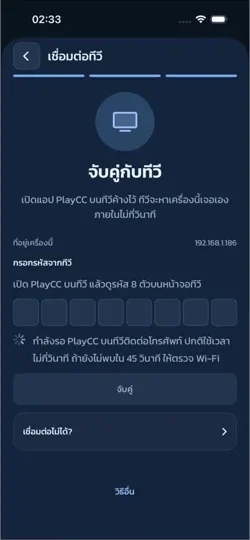
Get your devices and accounts ready
- PS5 and controller. Turn on the PS5. While using the second user, open Settings › System › Remote Play and turn on Enable Remote Play.
- A second PSN account. Add this free account as a user on the PS5 and allow it to use Remote Play. PlayCC uses it to receive the game picture while you keep playing with your controller on your main account. The second account does not need PS Plus.
- One home network. Connect the PS5, TV and computer or phone to the same router over Wi-Fi or Ethernet. Wire the PS5 if you can. Wi-Fi dropouts can make the picture and subtitles stutter.
For Xbox, choose Xbox in PlayCC, sign in with Microsoft and select your console. The Sony sign-in and console PIN steps below apply to PS5.
Install on a computer or phone
Open PlayCC downloads and choose the file for the device that will translate.
macOS 13 or later
- Unzip
PlayCC-mac.zipand move PlayCC to Applications. - The beta is not notarized by Apple. Right-click PlayCC and choose Open. If macOS still blocks it, open System Settings › Privacy & Security, click Open Anyway and confirm.
- If macOS asks PlayCC to access the Keychain, enter your Mac password and choose Always Allow. Approve Local Network access if asked, so PlayCC can find your PS5 and TV.
Apple's free translation needs macOS 26 or later. On macOS 13–15, use game packs and AI translation with your own API key (Settings › General › Translation engine).
Windows 10 or 11, 64-bit
- Right-click
PlayCC-win-x64.zipand choose Extract All to unpack the entire folder. - Run PlayCC.exe from the extracted folder. If SmartScreen appears, choose More info › Run anyway.
Android phone, Android 8 or later
- On the phone, sign in to Google and join the PlayCC testers group.
- Open the PlayCC test page and accept to become a tester.
- Open PlayCC on Google Play and install it. If you installed the website's APK before and Play cannot install it, uninstall the old PlayCC first.
Install on iPhone or iPad
- On an iPhone or iPad with iOS or iPadOS 16 or later, open PlayCC on the App Store and tap Get.
- Open PlayCC. If it asks for Local Network access, allow it so the app can find your PS5 and TV.
Apple's free translation needs iOS or iPadOS 26 or later. On versions 16–18, use game packs and AI translation with your own API key.
The App Store keeps the app up to date. If you installed the IPA from this site with iloader before, delete that copy first, then install from the App Store.
Install the TV app
Android TV / Google TV
- If you installed the PlayCC TV app from this website before, uninstall it from the TV first.
- On a phone or computer, sign in to the same Google account as the TV and join the PlayCC testers group.
- Open the PlayCC test page and accept the invitation to become a tester.
- Open PlayCC on Google Play, choose Install and pick your TV.
- Open PlayCC on the TV and leave it open for TV pairing.
LG TV (webOS)
- Create a free LG developer account at
webostv.developer.lge.com. On the TV, install Developer Mode from the LG Content Store and sign in. - Turn on Dev Mode Status and let the TV restart.
- On your computer, open Connect your TV, select LG and press Connect. Accept the prompt with the remote. After first-time setup, look in Settings › Subtitle appearance on Mac or Settings › About PlayCC on Windows.
- Open Developer Mode on the TV again, turn on Key Server and leave the app on screen. Enter the six-character, case-sensitive Passphrase from the TV and click Install on the TV in PlayCC.
Samsung TV (Tizen)
- On the TV, open Apps, scroll to the bottom and enter 1 2 3 4 5 on the remote or on-screen keypad.
- Set Developer mode to On, enter the computer address shown by PlayCC as Host PC IP and press OK. Hold the remote’s power button for about two seconds until the TV turns off, then turn it back on.
- Select Samsung in PlayCC’s TV setup, press Connect and choose Allow on the TV if prompted.
- Sign in with a free Samsung account in the browser PlayCC opens. Allow local network access if the browser asks. PlayCC uses Samsung’s certificate to sign and install the app for that TV.
Choose your game before translating
Enable English subtitles in the game menu. Once the console is paired, choose Start translating on a computer or Start translation on Android. The picker asks Which game are you playing? on a computer or opens Choose the game first on Android.
- Enter GTA VI in Search games.
- Select Grand Theft Auto VI from the list. PlayCC starts translating with that game’s context.
If this is your first PS5 setup, sign in to Sony and pair the console, then return here. If another title is missing, choose Game not in the list to translate without a catalog match.
Sign in to Sony with your second PSN account
- In PlayCC, click Sign in on Sony’s website.
- Sign in on Sony’s page with your second PSN account. If the browser remembers your main account, switch accounts first.
- After sign-in, the page may be blank or show an error. This is expected once the address bar shows Sony’s redirect page.
- Copy the entire address from the browser’s address bar, including everything after
code=. It starts withhttps://remoteplay.dl.playstation.net/remoteplay/redirect?code= - Return to PlayCC and click Paste. Wait for the app to confirm sign-in.
- The code works once and expires in a few minutes. If it fails, click Open Sony’s page again, then copy and paste the new address right away.
If Sony’s page won’t open, use your account ID
Click Enter account ID manually. To look up the ID, open psn.flipscreen.games as shown in the app and search for your second account’s PSN name. Its PSN privacy settings must allow anyone to find it.
Copy the base64 account ID. It has 12 characters including the final =, for example AbCdEfGhIjk=. Paste it into PlayCC and click Save. If you already know the long numeric account ID, PlayCC can convert it.
Pair your PS5 and TV
The PS5 uses an eight-digit PIN
- On the PS5, switch to the user linked to your second PSN account. Open Settings › System › Remote Play › Pair Device.
- In PlayCC, open Connect your PS5 on a computer or Pair your PS5 on Android and select your console. If it doesn’t appear, check that both devices are on the same network, search again or enter the PS5’s IP address.
- Enter the 8-digit code from the PS5 before it expires. Click Connect on a computer or Pair on Android. When you’re ready to play, turn on your controller and choose your main user.
The TV uses the code shown in the TV app
- On a computer, choose TV under Show subtitles on. On Android, tap the Subtitles tile and choose On the TV, over the game. Open PlayCC on the TV. For LG or Samsung, the computer app may have paired it during installation.
- If the TV shows an eight-character code, enter it in Pairing code on the computer or Enter the code shown on the TV on Android, then choose Pair. If the code expires, use the new code from the TV.
- On the computer, click Test on TV to send a sample subtitle. Then choose your game and start translating.
Translate subtitles, menus and other game text
Keep subtitles translating as you play
Open Settings › Subtitle area and choose where the game displays its subtitles. Drag the preview frame or its corner until it covers the English lines. PlayCC keeps reading that area and puts the Thai subtitles on the TV.
Translate text in place
To read a menu or item description, tap Translate screen on mobile, press ⌥⌘T on Mac, or use Num 9 or Ctrl+Shift+9 on Windows. PlayCC translates readable text across the screen once and shows each translation in the original position. Use the same control again to hide it. On Mac, turn on Translate text in place in Settings › Subtitle area to use that mode in place of bottom subtitles.
Save templates and share translations
With a game selected, save your subtitle position and areas as an Area template for that game. Use Apply template to restore them. The free plan allows one saved template total across all games. PlayCC Plus will add more templates for ฿99/month when it launches.
Translation sharing is always on for selected catalog games so other players can reuse translations. PlayCC Plus members will be able to turn sharing off when Plus launches.
Troubleshoot common problems
The PS5 refused the connection
Close Sony’s PS Remote Play app if it is already connected, then restart your PS5. Check that Remote Play is enabled for the second user and try again. If you need to pair again, request a fresh PIN as the second user.
The PS button switches the TV to the PS5’s HDMI input
HDMI-CEC can switch the TV input when you press the PS button. Give PlayCC a moment to reopen the TV app automatically. On Android TV, choose Let PlayCC reopen the TV app in TV setup and enter the code on the TV to pair the remote. To reopen it yourself from the computer, choose Open PlayCC on the TV again.
The picture or subtitles stutter
Connect the PS5 and computer or TV over Ethernet where possible. If you use Wi-Fi, choose 5 GHz near the router and keep all devices on the same network.
The Mac keeps asking for Keychain access
When the prompt identifies PlayCC as the app requesting access, enter your Mac password and choose Always Allow. Choosing Allow approves access for that request only.